
To use images on the website, you can either upload images from your computer, or reference existing images on the web. Once you’ve added files, you can also find them in the image gallery – which is available from a tab in the Add media button.
Adding an image from the web
Open a separate browser window or tab and find the image you wish to use. Right-click on the image and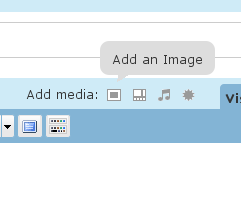 select “Copy Image Location” from the pop-up menu. If you don’t have this option, select “Properties” from the pop-up menu then copy the image’s address from the dialogue box which appears.
Now go back to your post, put the cursor where you would like the image to appear and select the rectangular button next to Add media: as shown. A dialogue box will pop up. The second option will be From URL. Paste the URL of the image into the source box and give the image a descriptive title too. I recommend also scrolling down and clicking the None button so that the image doesn’t also form a link.
Click “Insert into post”
Adding an image from your computer
As above, click the Add image button and press the “Choose files to upload” button and find your image files. When you have added the file click “Insert into post”.
Formatting the image
In either case, the resultant image may not be the right size, nor aligned properly with the text.
To correct the size, click once on it and a box will appear around it with squares on the corners. Click and drag one of the corner squares to make the image larger or smaller.
Also when you click on the image, you may notice two icons in the top-left corner of the image. The right-hand “cancel” sign will delete the image, the left-hand one allows you to edit its positioning, etc. Click this.
For some reason the alignment options don’t work properly, in that the text doesn’t flow neatly around the image as it does on this page, above. So instead, click on the “Advanced settings” tab.
On this tab, scroll down to the Style box and enter either:
border: 0pt none; float:right;
or
border: 0pt none; float:left;
Depending on how you wish to position the image (to the right or left respectively). Scroll down further and click the Update button. Unfortunately if you edit the image again later, the contents of the style box will be removed and the image will lose its position. If this happens, just enter the correct style again.