
 access the new website both for viewing and editing. Then we’ll cover the structure of the site before leading you through practical examples showing you how to add new content, edit content, delete content and reclassify (move) content.
Accessing the new site
The new website can be viewed at: http://www.drugprevent.org.uk/ppp
This will eventually be linked to from the splash page at: http://www.drugprevent.org.uk, but for now you can only reach it using the link above.
To be able to edit the website, you’ll need to use the admin section which can be found at the following address:
http://www.drugprevent.org.uk/ppp/wp-admin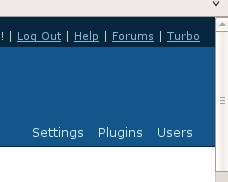
You will then need to enter your username and password which should have been emailed to you. Be sure to log out (top-right) when you’ve finished if you are using a public computer.
Content, Categories, Posts and Pages
Throughout this guide I will be using certain terms to describe the content we’ll be managing. These are described below and in the diagramme. You can also get an idea about how these terms fit together by looking at what is already on the website.
Posts: Most of the content on the website will be in the form of posts. These are individual articles which are likely to be added most regularly.
Pages (Static and Dynamic): Each item in the website’s main menu is a page. This guide is also a page.
Static pages simply contain whatever content is put on it. A static page must be edited individually and is a bit like a special post with its own link from the front page. Examples include the Home and Cannabis Info pages.
Dynamic pages list posts in the specified categories. The lists of posts are updated automatically as new posts are added, so there is usually no need to directly edit a dynamic page. In reality some dynamic pages will have a bit of static content at the top which can be edited separately. Examples include the International News and Research pages.
Note: You should not need to create any new pages! If you do, they will appear automatically in the main menu!
Categories: All posts need to be allocated to at least one category. You can tell what categories a 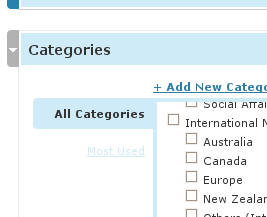 post is in by viewing it on its own. Beneath the post will be the words “Filed under” followed by the categories of which it is a member. See this example.
The categories a post is in decide which dynamic pages it appears on.
For example, any post given the category “Australia” will be automatically added to the International News page under the heading Australia. Removing the post from this category will remove it from this section. Note that posts can be added to more than one category, as in the Research section where a post may belong to the categories, Cocaine, Alcohol and Prevention Works Volume 1 Issue 1, which would cause it to automatically appear in all these sections. There is then no need to edit the Cocaine, Alcohol and Prevention Works Volume 1 Issue 1 pages to add the new post, just tick the required categories when adding or editing the post.
Example: Adding a post
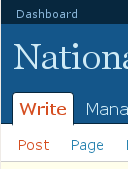 Once you’ve logged into the admin section, you’ll see a medium blue bar across the top with the website’s title. Under the title are a number of tabs. Click on the “Write” tab. Below it you’ll see a line of sub-options in white. Click on “Post”.
You’ll now be presented with a form for entering the post. There are many options towards the bottom of this form that you can ignore. The essential bits are the Title, Post, Categories and Published Status.
Title: This will appear above the post when it is viewed and also forms the text of the link when the post is listed on dynamic pages. You can only use plain text with no formatting for the title.
Post: The body of the post itself can be given basic formatting using the buttons (Bold, Italic, Bullet 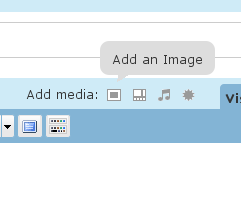 points, Headings, etc) at the top. More formatting options can be shown by clicking the “Kitchen Sink” button below “Add media”. Images can be added using the rectangular button next to “Add media:”. See the Guide to adding images for more information.
When pasting text into a post from another website or document the formatting of that webpage or document can sometimes come along too, which can look messy and inconsistent with the rest of the website. For this reason I suggest the following method:
- Start a new post, and type in the title.
- Open Notepad (Start -> Run -> type Notepad.exe, Press OK)
- Open the source webpage or document.
- Highlight and copy the text your wish to use.
- Switch back to the empty Notepad window and paste the text into it.
- In Notepad press CTRL+A to select all the text.
- In Notepad press CTRL+C to re-copy the text.
- Switch back to your new post.
- Press CTRL+V to paste the text into the body of your post. This will remove all formatting.
To add a link, first select/highlight the text you wish to form the link, then click the link button (which is only enabled when you select something). In the form which appears, type or paste in the full link (eg: http://www.google.com) and click insert.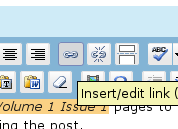
If you wish to add more complicated HTML, such as scrolling text or links within the page, you can select the HTML rather than the Visual tab at the top right, but this is somewhat harder.
Once you have finished editing the post, scroll down to below the post text window to the Categories box. You may need to click the arrow on the left to expand this. The website has a large number of categories, so you may need to scroll down this list to find what you want. By default the Uncategorised category is selected, so start by un-ticking this (it’s at the bottom of the list). Remember that the categories you select will affect where this post appears on the website. So if you want this post to appear on the “More” page, select the More category.
Also note that some categories are indented, showing that they are sub-categories intended for a particular page. For example, in the image to the right, Australia, Canada, Europe, etc are sub-categories of International News. When you have sub-categories, always select a sub-category (eg: Australia), not the top-level one (eg: International News). When you have ticked all the categories you want, scroll back up and press the Save button on the right hand side.
Example: Deleting a post
To delete a post, select the Manage tab followed by Posts from the horizontal list that appears beneath it. You’ll see a list of all posts, separated into pages. As these will be quite numerous, you can use the date (when the post was added) and category filters or Search box to find one(s) you’re looking for.
To permanently remove a post or posts from this list, tick the box to the left of the post (selecting as many as you wish), then click the Delete button at the top of the list.
You can also make a post invisible to visitors, while keeping it for later use. To do this, click on the Title of the post to show the editing view. On the right hand side there is a “Published Status” drop-down box. Select Unpublished from this and click Save.
Example: Editing a page
To edit a page, select the Manage tab followed by the Pages link below it. Then find the page in the multi-page list (you can use the filter or search options) and click on its title. Make whatever changes you want and remember to click the Save button.
Example: Moving a post
Follow the instructions above for editing a page, but select a post. Scroll down below the post body to the Categories box. Un-tick the post’s current category and tick the new one. Press Save. When you reload the website, the post will have moved to the dynamic page showing the new category.
Example: Adding links
The Links page available from the main menu is dynamically generated from the list of links stored by the content management system. These can be added by clicking on the Write tab as you did for writing a post or page, then selecting Link from the horizontal list below. A simple form will be displayed requiring a Name to be used as the link text, the Web Address including the http:// and the category for the link. Be sure to select the External Links category or the link will not be shown on the Links page.
Features we don’t use
Tags: Tags are similar to categories, but more numerous and can be used in a greater variety of ways. For our purposes categories meet all our needs.
Comments: Some WordPress websites allow visitors to comment on posts and pages. This feature has been completely disabled on the NDPA website, although you may still see the options relating to Comments in the admin section. This also simplifies managing and securing the website.